
Docx to Markdown Converter for Power Users: Migrate a Word Folder to Astro or Hugo in One Pass
Docx to Markdown Converter for Power Users lets you move a folder of Word .docx files into an Astro or Hugo content directory in one pass: drop the batch into the free browser tool, download one zip, unzip into your content folder, then add frontmatter with a small script. Nothing is uploaded, and v2.0.0 handles the bulk step.
Docx to Markdown Converter for Power Users covers the hard half of a content migration: turning Word files into Markdown. The other half is frontmatter and structure, and that is what this tutorial adds. The release story is on the main post.
How Do You Migrate Word Files With the Docx to Markdown Converter for Power Users?
You need a folder of .docx files, an Astro or Hugo project, and about an hour for the first run.
Prepare the Word source.
Convert the batch.
Unzip into the content directory.
Add frontmatter.
Build and check.
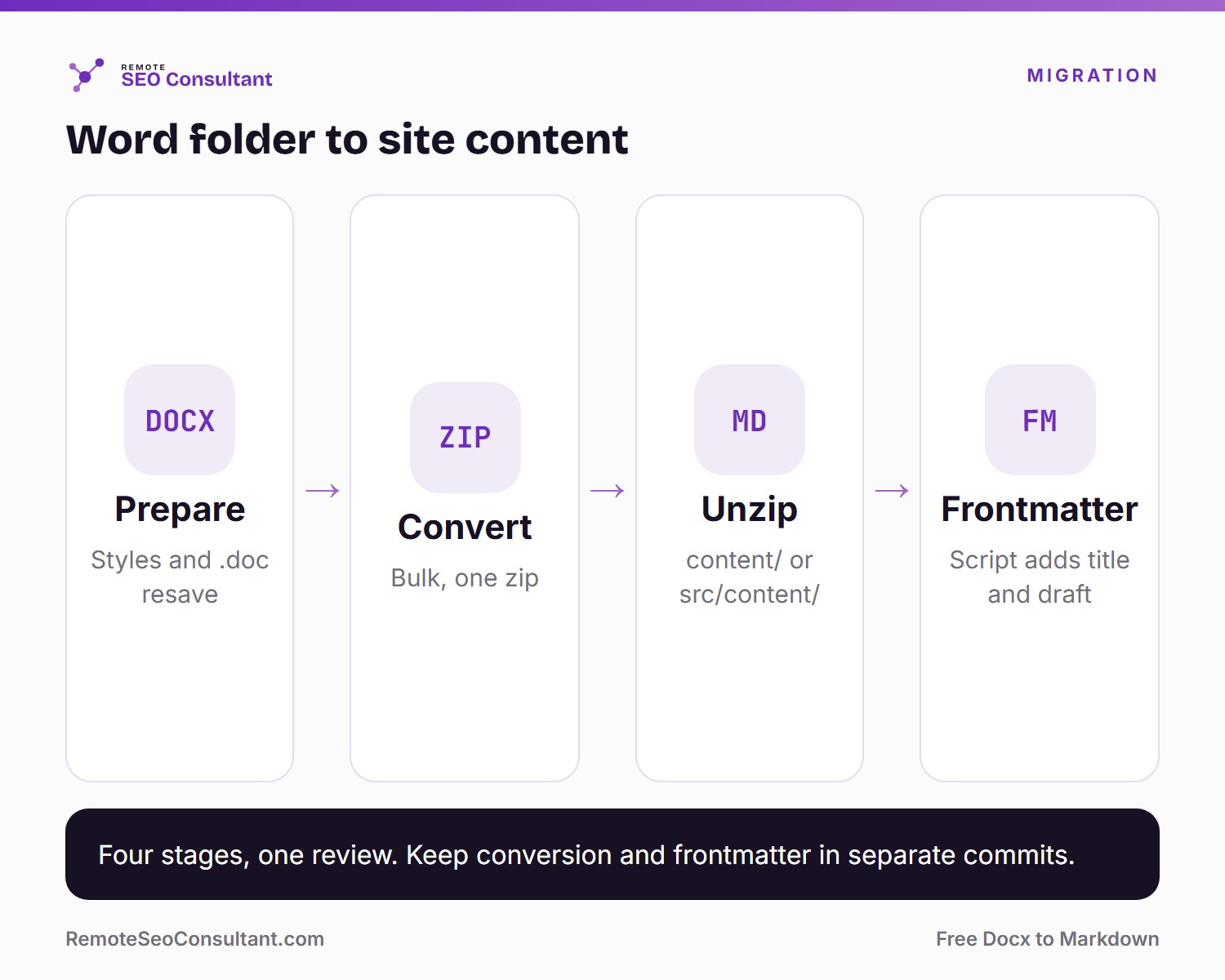
The four-stage path from Word folder to site content.
Step 1: Prepare the Word source
Apply real Heading 1 to 6 styles and simplify any merged table cells. If you have legacy .doc files, resave them as .docx in Word or LibreOffice. The converter accepts .doc as a text-only beta, but a site migration wants headings and tables.
Step 2: Convert the batch with the Docx to Markdown Converter for Power Users
Open the free converter, select every file (or drag the folder's contents in), and wait for each result card. Read each fidelity badge. When two or more files finish, click Download All (.zip).
The tool maps Word structure to GitHub Flavored Markdown through mammoth.js, a table-cleanup pass and Turndown with the GFM plugin. Headings, nested lists, links and pipe tables survive. Visual formatting is dropped on purpose.
Step 3: Unzip into your content directory
# Astro (content collections)
unzip path/to/your-download.zip -d src/content/docs/

# Hugo
unzip path/to/your-download.zip -d content/docs/
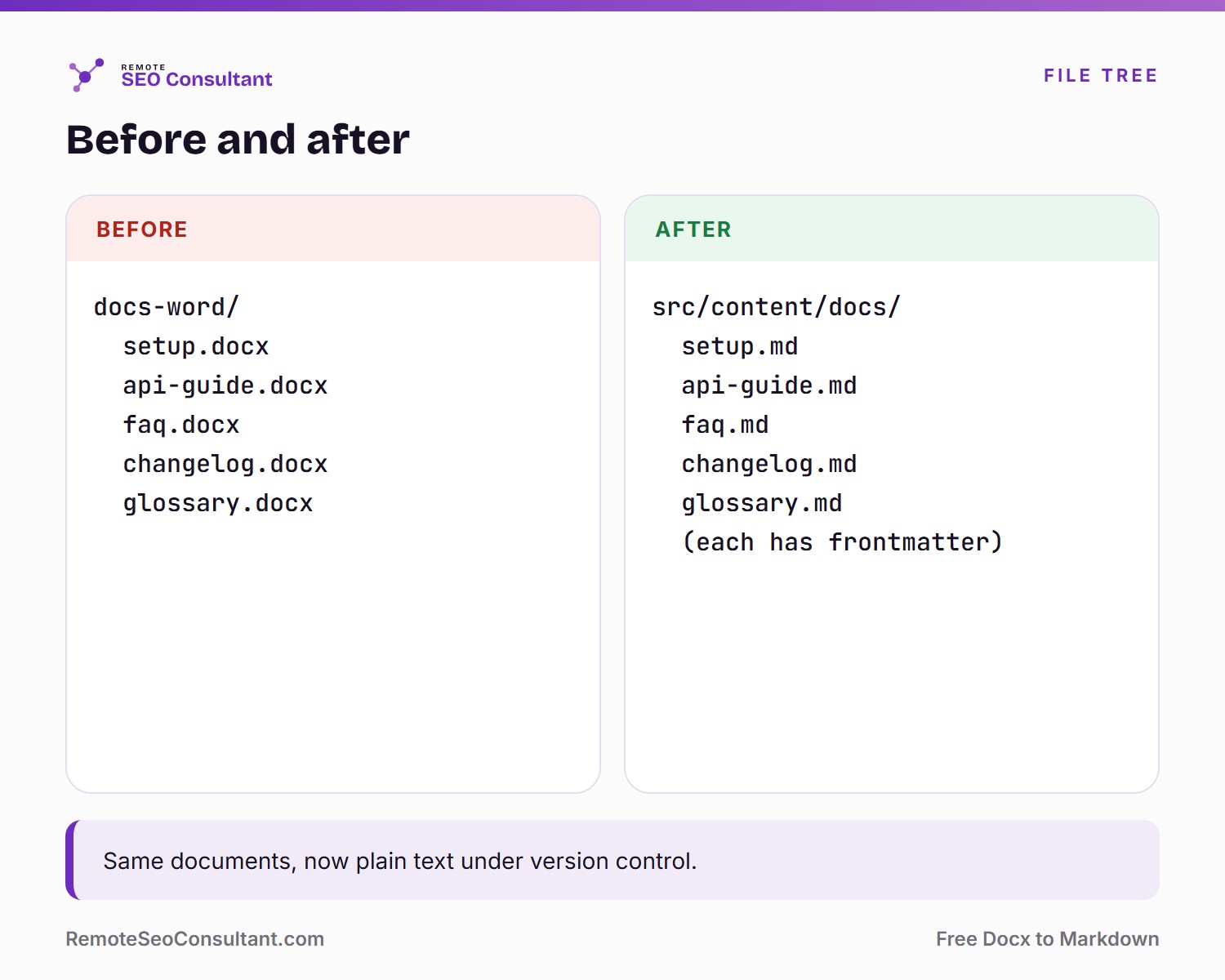
Same documents, now version-controlled text.
Step 4: How do you add frontmatter after a Docx to Markdown Converter for Power Users run?
The converter outputs the document body. Astro collections and Hugo sections want frontmatter. This small Node script adds a title taken from the first heading and marks each file as a draft:
// add-frontmatter.mjs
import { readdirSync, readFileSync, writeFileSync } from 'node:fs';
import { join } from 'node:path';

const dir = process.argv[2] ?? 'src/content/docs';
for (const name of readdirSync(dir).filter(n => n.endsWith('.md'))) {
  const path = join(dir, name);
  const body = readFileSync(path, 'utf8');
  if (body.startsWith('---')) continue;
  const h1 = body.match(/^#\s+(.+)$/m);
  const title = (h1 ? h1[1] : name.replace(/\.md$/, '')).replace(/"/g, '\\"');
  writeFileSync(path, `---\ntitle: "${title}"\ndraft: true\n---\n\n${body}`);
Run it with node add-frontmatter.mjs src/content/docs. Check your own content schema first: Astro collections validate frontmatter, and Hugo archetypes differ per theme.
Step 5: Build and check
Run your dev server and open three pages: one with a table, one with a nested list, one with links. Fix relative links and image references, then flip draft to false page by page.
What Should You Watch For in a Docx to Markdown Converter for Power Users Migration?
Heading levels. Many sites reserve H1 for the page title, so a converted H1 may duplicate it. Demote or remove it in your template.
Relative links. Word links to other documents will not resolve. Rewrite them to site paths.
File names. Zip entries match source names. Rename to slugs your router expects.
Images. Verify how images come through in your sample and plan them separately.
Key Takeaways
Convert in bulk with the browser tool, then add frontmatter with a script.
Resave .doc files as .docx before a site migration.
Check headings, relative links and file names after unzipping.
Keep the diff reviewable: one conversion commit, one frontmatter commit.
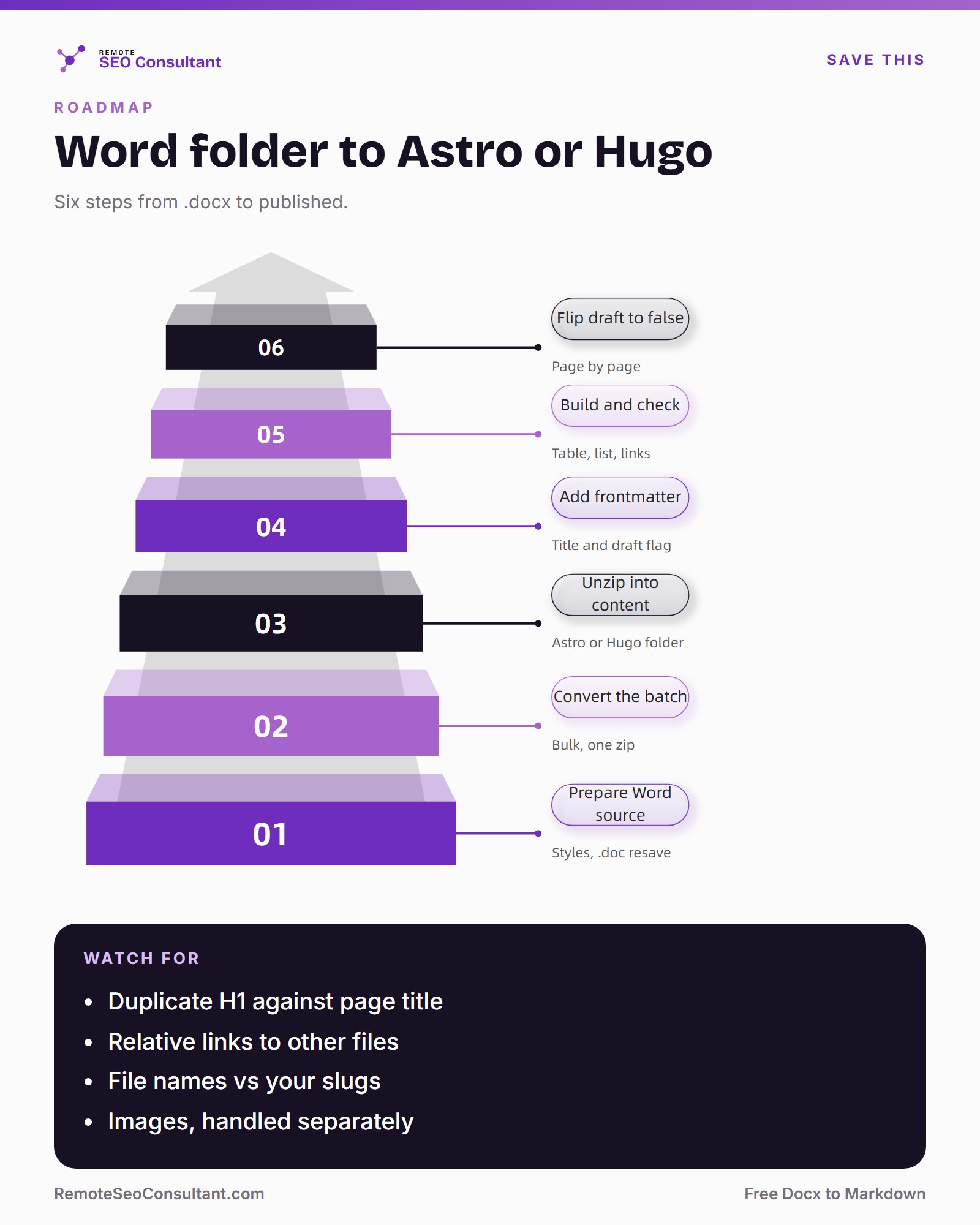
The migration roadmap for the Docx to Markdown Converter for Power Users. Save it for your next site move.
Conclusion
A Word-to-site migration is four repeatable steps and one review. The OpenPR announcement is there if you need a citation, and the Docx to Markdown Converter for Power Users is there for the conversion.
FAQ
Can I move Word documents into Astro?
Yes. Convert the Word files to Markdown, unzip them into a content collection folder, add the frontmatter your collection schema requires, then build and check pages. The converter handles the Word-to-Markdown step, and a short script can add titles and draft flags afterward.
Can I move Word documents into Hugo?
Yes. Convert the files, unzip them into a content section, add frontmatter that matches your archetype, then run Hugo. Heading levels may need adjusting to fit your theme, because many themes already render the page title as the top-level heading.
Does the converter add frontmatter?
No. The converter outputs the document body only. Add frontmatter afterward, manually or with a short script like the one in this tutorial, which reads the first heading as the title and marks each converted file as a draft until you review it.
How do I convert many Word files at once?
Select all files in the file picker or drag them in together. Each file converts independently into its own card, and Download All (.zip) bundles the results once two or more finish, so a whole folder becomes one archive you can unzip into your project.
Is the converter free?
Yes. It is a free Docx to Markdown tool with no signup, no install and no watermark. Sponsorship placements on the page help cover upkeep, so the converter stays free for developers who use it for site migrations and docs work.
Are my files uploaded?
No. Conversion runs in your browser with JavaScript on your device. Nothing is uploaded, tracked or stored, and the Download All zip is built locally too, so you can convert a whole content folder without any document leaving your machine.
What happens to old .doc files?
They are accepted as a beta with text-only extraction, so headings, lists and tables are not preserved. For a site migration, resave the file as .docx in Word or LibreOffice first so the converter can map real headings and tables into Markdown.
Do tables survive?
For .docx files, yes, as GitHub Flavored Markdown pipe tables. Merged or very complex cells can need a manual check, so open one converted page with a table in your Astro or Hugo dev server and confirm that it renders correctly before you flip the draft flag.
Why do I get two H1 headings on a page?
Your template probably renders the page title as an H1, and the converted document also starts with an H1. Demote or remove the body H1 in the content or in the template so each page keeps a single top-level heading for readers and search engines.
How do I fix relative links?
Word links to other files will not resolve inside a site. Search the converted Markdown for link targets, then rewrite them to your site's URL paths. A short script or an editor's find and replace is enough for a handful of documents.
How do I convert Google Docs?
Download the Google Doc as a Microsoft Word .docx using File, Download, Microsoft Word, then convert that file. Google Docs does not export clean Markdown by default, so the .docx step gives the converter real heading styles and tables to map.
Can I sponsor the converter page?
Yes. Sponsorship placements on the converter page are open, first come, first served. Use the Sponsored Placements button in the footer of remoteseoconsultant.com to start the conversation. Sponsorship does not change how files are converted, which stays in the browser.
About the author
- Md. Istiqur Rahman writes this blog — Istiqur IT Consultant, a personal tech diary about AI, workflow, Windows, and Linux — and, separately, runs paid Remote SEO Consultant and Remote GTM Manager work for teams that need real hands-on help, not just advice. Website development rounds out the third leg: fast, secure sites for startups and small online shops. Learn more: https://istiquritconsultant.com/md-istiqur-rahman/
Comments
Join the discussionNo comments yet. Be the first to comment.